Navigating to an affiliate
Users who belong to a parent account can navigate to a child account (also known as affiliate) to view transactions and to act on behalf of the child.
Note: You can view confirmations in Cross-Border reports for deals booked by a child account without first switching to the child account. This applies to the following reports: , , , and.
To navigate to an affiliate
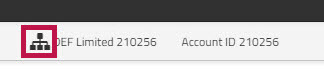
- In the account information section in the top left hand corner of the screen, click the
 hierarchy icon.
- A slideout appears that shows the hierarchy of all of the affiliates that are under your account.
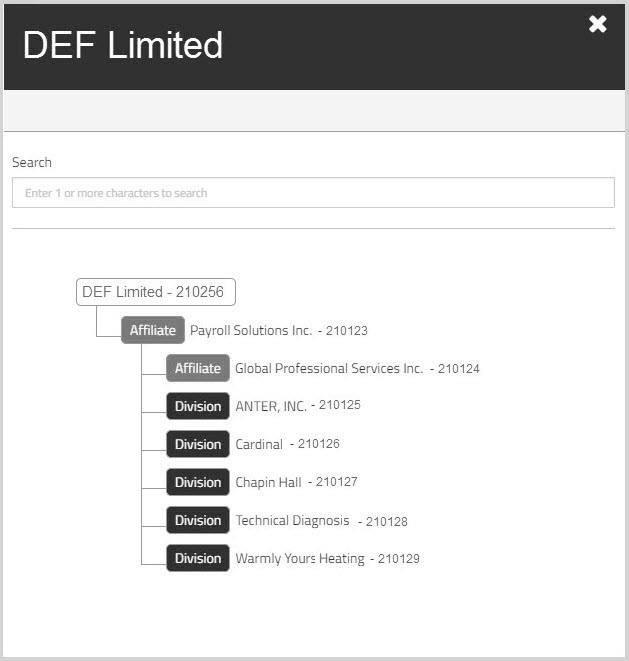
- Optionally, in the field, start typing the name of the affiliate you want to find.
The list is modified to show only those affiliates that meet the search criteria. - In the hierarchy diagram, click to select the child account you want.
You can now act on behalf of the selected affiliate.
The header information displays the name of the child account under which you are now operating.
This information remains visible on every page as long as you are operating as the child account. - To return to the parent account, click the on the header message.

Or click the hierarchy icon and choose the top level, parent account.